Why Your WordPress Site Looks Broken After Every Update
WordPress sites break after updates more often through silent regressions than through full crashes: a theme, plugin, or page-builder update changes how something renders or behaves — a form stops validating, a menu stops opening, a section shifts — while the page keeps loading normally with no error anywhere. It stays live and broken because nothing in wp-admin flags it. The fix is a quick manual check on the live site, immediately after every update, not waiting to see if anyone complains.
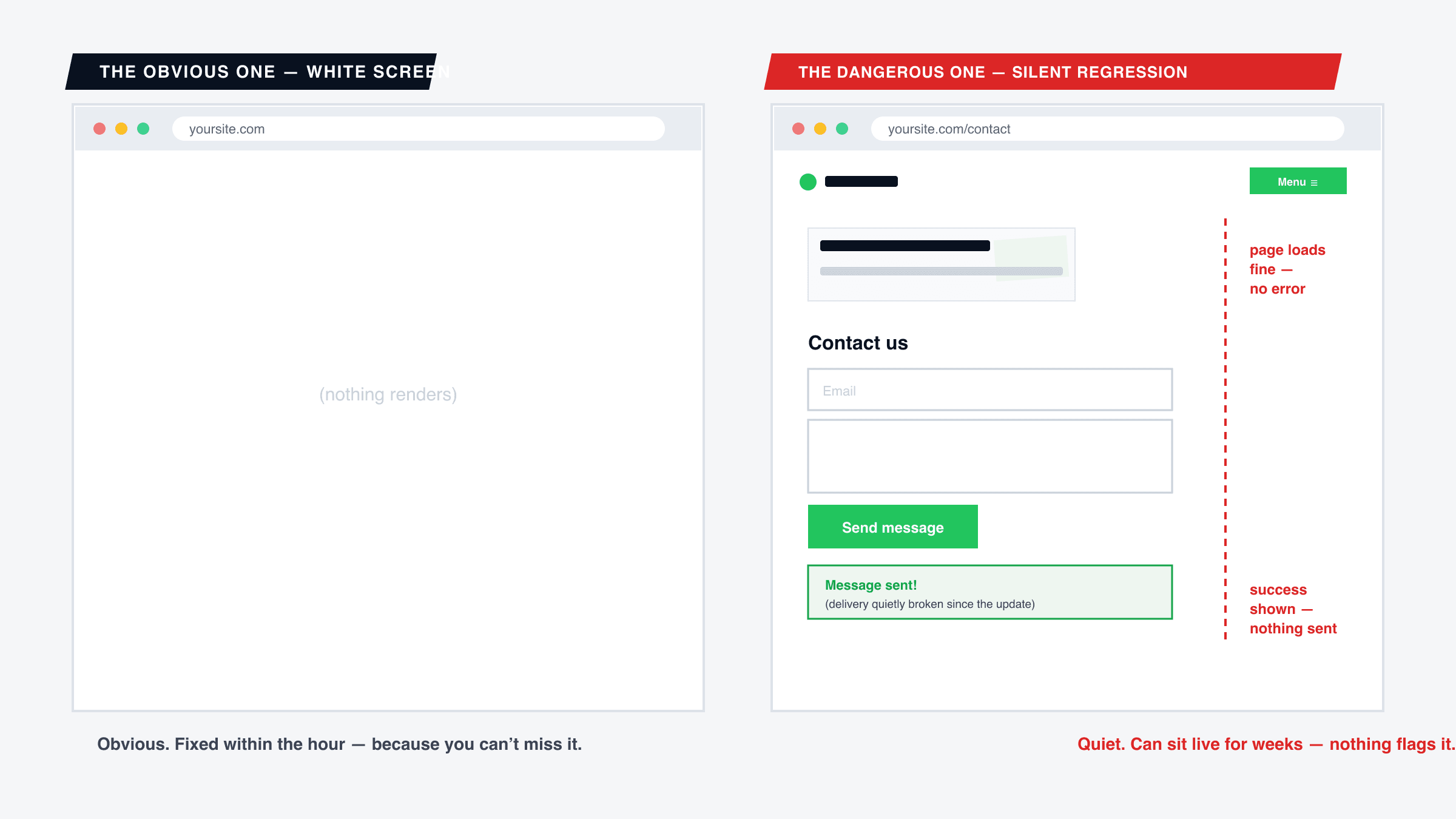
Most WordPress advice about updates focuses on the white screen of death — the dramatic, obvious failure where the whole site goes down and you fix it within the hour because you can't not notice. That failure mode is real, but it's not actually the dangerous one, because it announces itself immediately.
The dangerous failure mode is quieter: the site stays up, loads normally, looks fine at a glance — and something on it is subtly broken. Those regressions can sit live for weeks. Here's why they happen, why you don't catch them yourself, and the 10-minute check that does.
Why updates cause silent breakage, not just crashes
A theme, a page builder, and a dozen plugins are all independently writing CSS, JavaScript, and markup into the same page. Most of the time it holds together by convention rather than by any guarantee — nothing stops a plugin update from shipping a class name that happens to collide with your theme's styles, or changing a shortcode's markup in a way your custom CSS no longer targets correctly.
None of that throws a PHP error. PHP errors happen when code fails to execute — a missing function, an incompatible core change. A CSS conflict or an altered form structure executes just fine; it just doesn't look or behave the way it did yesterday. The page renders. It renders wrong, and WordPress has no mechanism to notice or tell you.
The four regressions we see most after WordPress updates
1. Forms that stop validating or stop sending
A form plugin or SMTP-related update is one of the most common ways a contact form goes from working to silently broken — validation stops showing errors, or the plugin's mail-sending step quietly starts failing. The form still renders, still accepts a click on submit, and still shows a success message. Nothing about the visible page tells you delivery is broken.
2. Page-builder sections that scramble at specific widths
Elementor, Divi, and similar builders generate their own CSS per page — and an update to the builder or a conflicting plugin can leave that generated CSS stale, out of sync with the actual page structure. The visible result is a section that looks correctly built in the editor and renders scrambled or overlapping on the live page, often only at specific widths you weren't looking at when you last checked.
3. The mobile menu that no longer opens
A theme or menu-plugin update changes a class name or a JavaScript hook the mobile hamburger menu depended on, and the icon keeps rendering while the tap handler quietly stops working. On desktop, where the full menu is already visible, this is completely invisible — you have to be looking at the mobile view specifically, with the menu closed, and actually tap it.
4. Cached pages showing you yesterday's version
Caching plugins and host-level caching are supposed to help performance, and mostly do — but they mean that right after an update, you might load a cached copy of the old page and conclude everything's fine, while a first-time visitor without that cache entry gets the new, broken version. Always check in an incognito window with the cache purged, not just your regular browser tab.
Why don't I notice this myself?
You check your own site logged into wp-admin, which changes what you see in ways that are easy to forget about — admin bars, editor previews, and sometimes plugin behavior that differs for logged-in users. You're also checking on the device you manage the site from, which is desktop, and you already know the layout well enough that a small shift doesn't register as wrong.
A genuinely fresh, logged-out, mobile-width view of your own site is a perspective you almost never naturally get — you'd have to deliberately go incognito, on a phone, having never seen the page before. That's exactly the perspective a real first-time visitor has, every time.
The 10-minute post-update check
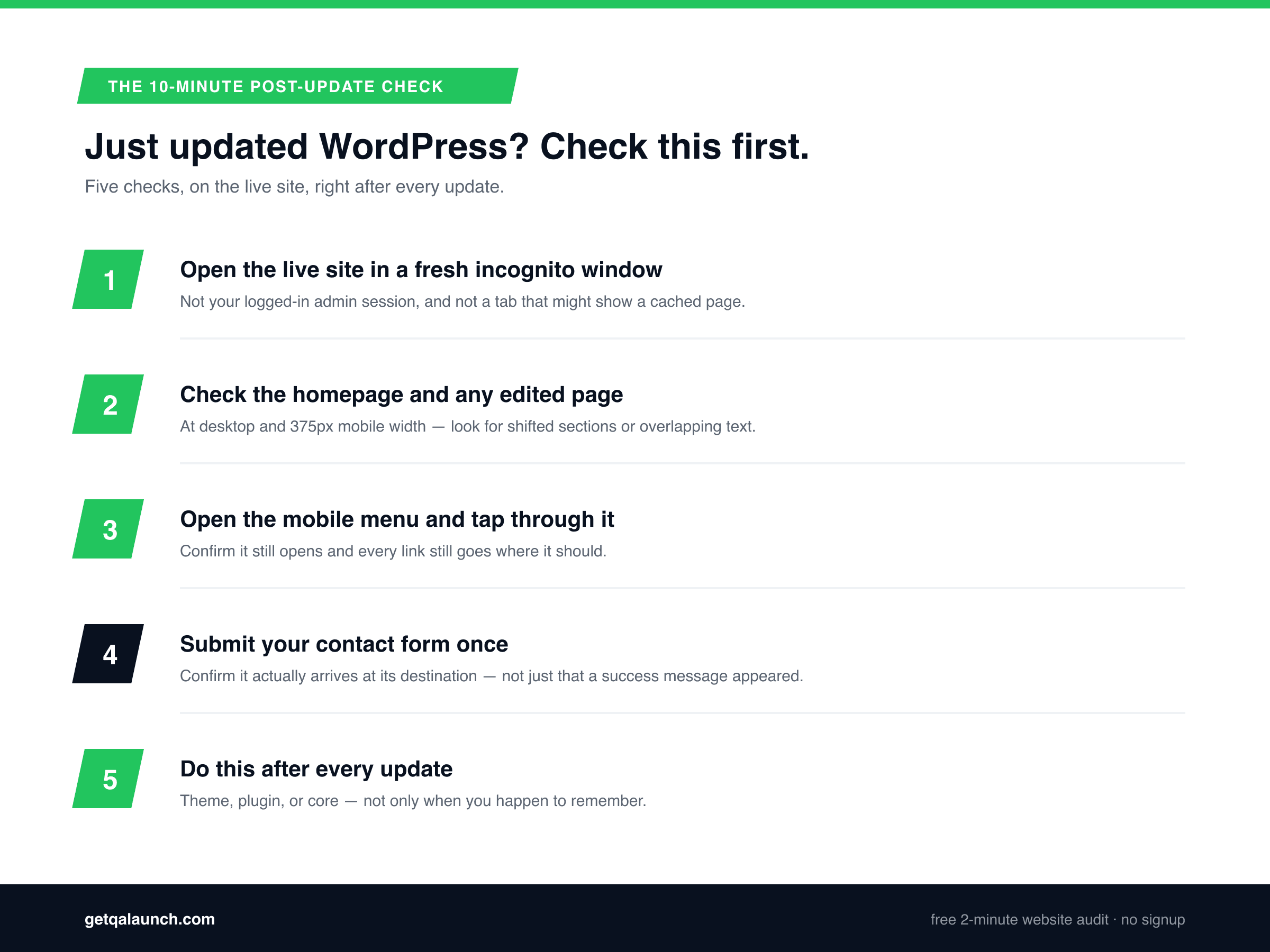
- Open the live site in a fresh incognito window. Not your logged-in admin session, and not a browser tab that might be showing a cached page.
- Check the homepage and any page you editedat both desktop and 375px mobile width (Chrome DevTools, Cmd/Ctrl+Shift+M). Look for shifted sections, overlapping text, or anything that wasn't there before.
- Open the mobile menu and tap through it. Confirm it still opens and every link still goes where it should.
- Submit your contact form once, with a message you'll recognize, and confirm it actually arrives at its destination — not just that a success message appeared.
- Do this immediately after every update — theme, plugin, or core — not only when you happen to remember, and not only when something feels off.
None of this is complicated. The only real requirement is doing it every time, right after the update — because a regression caught the same day is a two-minute fix, and one discovered three weeks later from a customer email is a much worse conversation.
The same pattern, different platform
If any of this sounds familiar from other tools, it should — the underlying cause is never really the platform. It's the gap between how an owner reviews their own site (logged in, on desktop, already familiar with it) and how a real visitor experiences it (logged out, often on a phone, seeing it for the first time). We see the exact same mechanism in contact forms that fail silently and in AI-built sites that ship bugs nobody notices — WordPress just has more moving parts writing to the same page, which is why it happens on every update instead of only at launch.
Frequently asked questions
How do I check my WordPress site after an update without waiting for visitors to complain?
Open your live site in an incognito window right after any theme, plugin, or WordPress core update. Walk the pages that matter most — homepage, contact, any page with a form or a page builder section — at both desktop and 375px mobile width, and submit your contact form once to confirm it still reaches you. Ten minutes, done immediately after the update, catches almost everything before a visitor does.
Why does my site look fine to me but broken for visitors after an update?
You're checking it as the site owner — logged into wp-admin, on desktop, already familiar with the layout, often with a cached version of the page. A regression that only shows on the logged-out, mobile, first-load version of a page is invisible from inside that admin session. It has nothing to do with carelessness; it's a structural blind spot every WordPress owner has.
Can a plugin update break my site without any error message?
Yes — this is the more common and more dangerous failure mode compared to a fatal error. A plugin update that changes how it renders a form, injects different CSS, or alters a shortcode's output produces no PHP error and no white screen. The page loads completely normally; it just renders differently, or a feature silently stops working, and nothing in wp-admin flags it.
Is a full white-screen crash the main risk after a WordPress update?
It's the most visible risk, but not the most common one in practice. A full crash is obvious and gets fixed within minutes because you notice immediately. A partial regression — a form that stopped validating, a mobile menu that no longer opens, a section that shifted — can sit live for weeks because the site still loads and nothing looks urgently wrong at a glance.
Should I test on a staging site before updating, or after updating live?
Ideally both. Staging catches obvious breakage before it reaches visitors, when your host or setup supports it. But staging tests rarely include a genuinely fresh, logged-out, mobile pass — so a quick post-update check on the live, published site is still worth doing even when you stage first, because it tests the actual conditions a visitor will have.
Can QAlaunch catch WordPress bugs automatically?
Yes — QAlaunch opens your live site in a real cloud browser as an anonymous visitor, at desktop and mobile widths, and checks for layout breaks, broken links and buttons, and functional issues like forms that don't respond correctly — regardless of what theme, plugin, or page builder is running underneath. Run it after any update you're unsure about. Free scan, about two minutes, no signup.
Check your site the way a visitor actually sees it
QAlaunch opens your live WordPress site in a real cloud browser as an anonymous visitor — no admin login, no cache — and checks it at desktop and mobile widths for layout breaks, broken links and buttons, and functional issues. Run it after any update you're not sure about. Free scan, about two minutes, no signup.
More on WordPress-specific issues in our WordPress site check guide, or see why contact forms fail silently for a closer look at one of the most common regressions above.